TL;DR
- You can enable Claude Code auto mode (also called YOLO mode or dangerously skip permissions) in VS Code by changing two settings, and it takes about thirty seconds
- Open VS Code Settings, check "Allow Dangerously Skip Permissions," then change "Initial Permission Mode" to
bypassPermissions - If you're already clicking Yes every time Claude Code asks for permission, this just removes the friction without changing anything about how you work
- This is written for non-technical entrepreneurs who are building with Claude Code and don't want to dig through developer forums for the answer
If you want to run Claude Code in Auto Mode (aka YOLO mode) using VS Code but you can't figure out how to actually set it up, I've got you. I couldn't figure it out either for a while, searched Google, searched Reddit, asked AI, tried a bunch of different things, and none of them gave me a clean answer. Until today. And now I'm paying it forward so you don't have to go through what I did.
I use Claude Code inside Visual Studio Code every day. I built my entire website with it in 3 days, I use it to publish blog posts, build dashboards, create marketing assets, and integrate things with Notion. Every time Claude Code wanted to do something, it would stop and ask me to click "Yes." I was always going to say Yes. And half the time I was working on something else while it ran, so I'd look back and realize Claude Code had been sitting there waiting on me. I'd become my own bottleneck.
I knew "dangerously skip permissions" was a thing, I'd heard people call it YOLO mode and auto mode, but the answers I found were buried in developer forums and written for a technical audience. I'm not a developer. When Claude Code gives me something to paste into a terminal, I copy and paste exactly what it says. I needed this to be simple. If you are just getting started, here is Claude Code for non-developers, the full walkthrough. And if you have never coded a day in your life, here is how to get started with Claude Code as a non-coder, from the very first click to your first build.
Two settings. About thirty seconds. Here's exactly how to do it.
How Do I Enable Auto Mode and Dangerously Skip Permissions in Claude Code?
Two settings in VS Code. That's the whole thing.
Step 1: Open VS Code Settings. On Mac, press Cmd + , (that's Command and comma). On Windows, press Ctrl + ,.
Step 2: In the search bar at the top, type permissions.
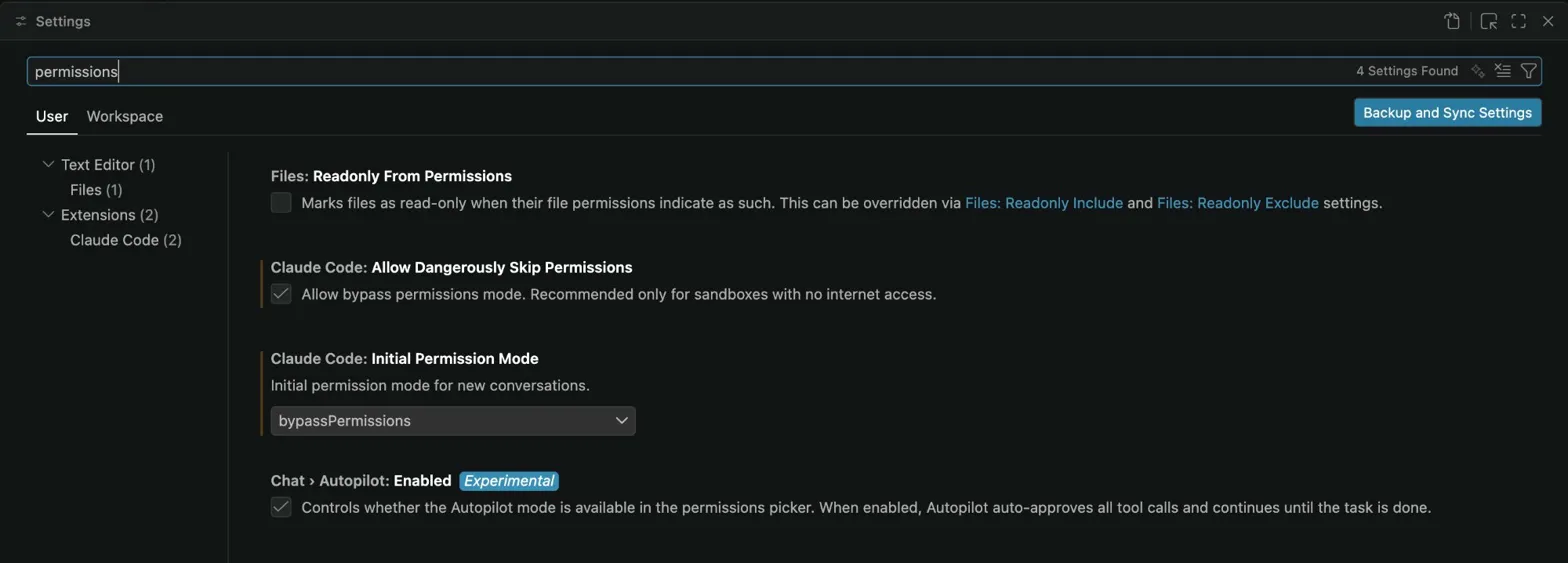
Step 3: You'll see settings appear under Extensions > Claude Code. Find "Claude Code: Allow Dangerously Skip Permissions" and check the box.
Step 4: Find "Claude Code: Initial Permission Mode" and click the dropdown. Change it from default to bypassPermissions.
Step 5: Close and reopen your Claude Code session.
That's it. No more popups. Claude Code runs every action without stopping to ask. This is what people mean when they say YOLO mode.
Is It Safe to Use Dangerously Skip Permissions in Claude Code?
The setting literally says "Dangerously Skip Permissions." That sounds scary. I get it.
Here's how I think about it. I'm using Claude Code to build my website. I'm creating and publishing blog posts. I'm building dashboards and connecting things to Notion. None of these are high-risk operations where a wrong move destroys my business.
If your downside is "Claude Code wrote a line of code I need to change," you're in a completely different risk category than who that warning was written for. That warning exists for enterprise developers working on sensitive production systems. Conservative guidance for a specific audience.
You and I are entrepreneurs building our own things. We're already saying Yes every time. The only thing changing is we're removing the clicks between us and the work.
My honest caveat: I'm comfortable with this because I'm working on my own projects where the consequences of a mistake are low. I can always undo, revert, or fix. If you're working on something where a mistake would be genuinely costly, keep the prompts on for that project. Know your risk.
Which Claude Code Permission Mode Should I Choose?
When you click the dropdown, you'll see four options. Here's what you need to know.
bypassPermissions is the one I use. It removes all permission popups completely. If you're already clicking Yes to everything, this is the one.
If that feels like too big of a jump, acceptEdits is a middle ground. It lets Claude Code edit files without asking but still prompts you before running terminal commands.
The other two modes (default and plan) still involve clicking through prompts, which is what you're trying to get away from.
My recommendation: start with bypassPermissions. If you were already saying Yes every time, nothing about your actual workflow changes. You're just removing the friction.
Go Build
I spent more time searching for this answer than it took to actually make the change. That's the kind of thing that slows down entrepreneurs who are building with AI every day, and it doesn't need to.
Thirty seconds. Two settings. And now every Claude Code session runs the way it should have from the start, with you focused on what you're creating and Claude Code focused on executing.
Undeniable Studio
Ready To Build At The Speed Of Your Imagination?
Grow your business with AI, made simple and fun. Like having a Chief AI Officer by your side.
Join the Studio →Weekly Live Building · Human-First AI